
Learning
Flashcards and reviews
The flashcards page #
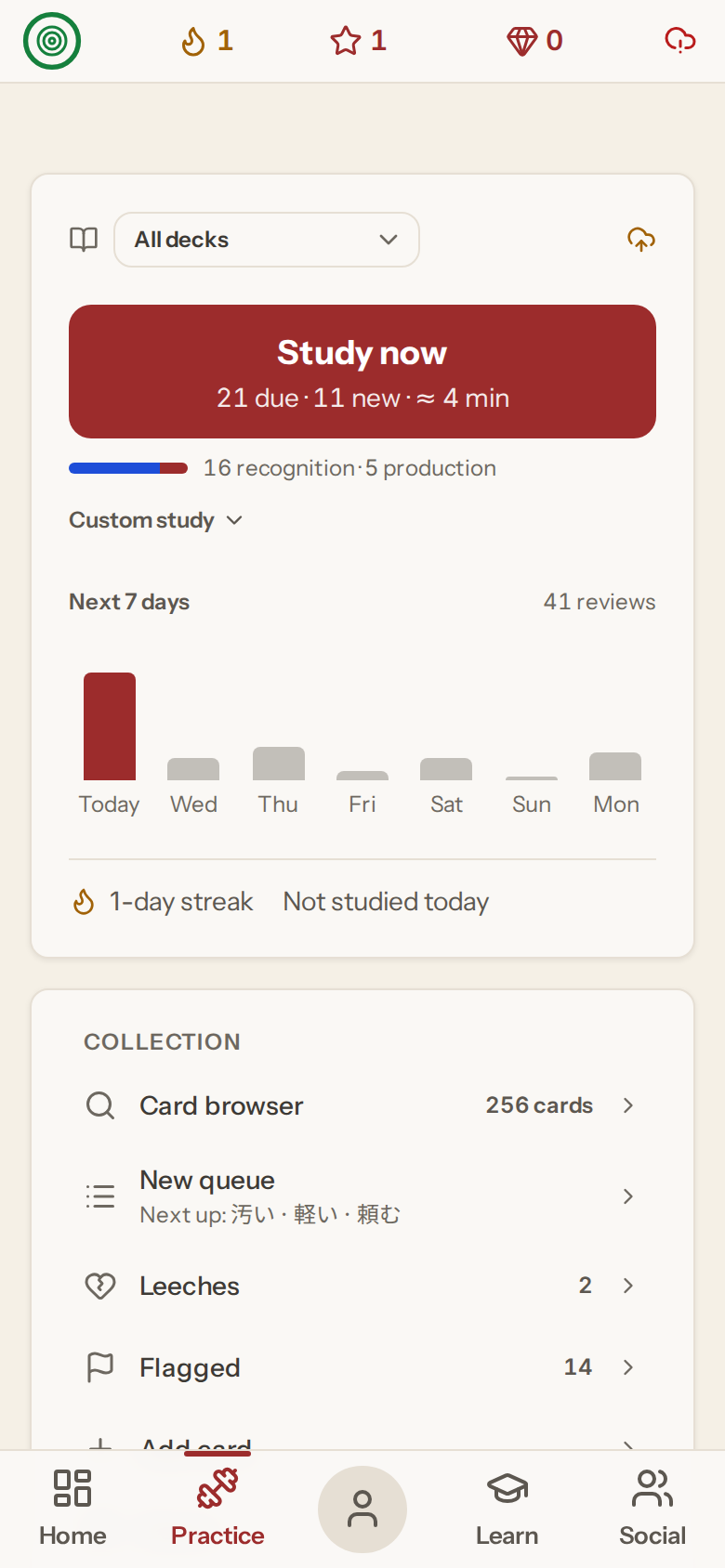
Open Practice › Flashcards. Study now shows how many cards are due and how many new ones are waiting, with a rough time estimate. Underneath are the next seven days of reviews, your streak, and the Collection list: the card browser, the new-card queue, leeches, flagged cards, adding your own card, decks and Anki import. The deck picker at the top limits a session to one deck.
Why cards come back when they do #
Reviews use FSRS-6, a modern spaced-repetition scheduler. After each answer it estimates how long you will remember the item and schedules the next review just before you would forget. Answer well and the gap grows quickly; struggle and it shortens.
Reviewing a card #
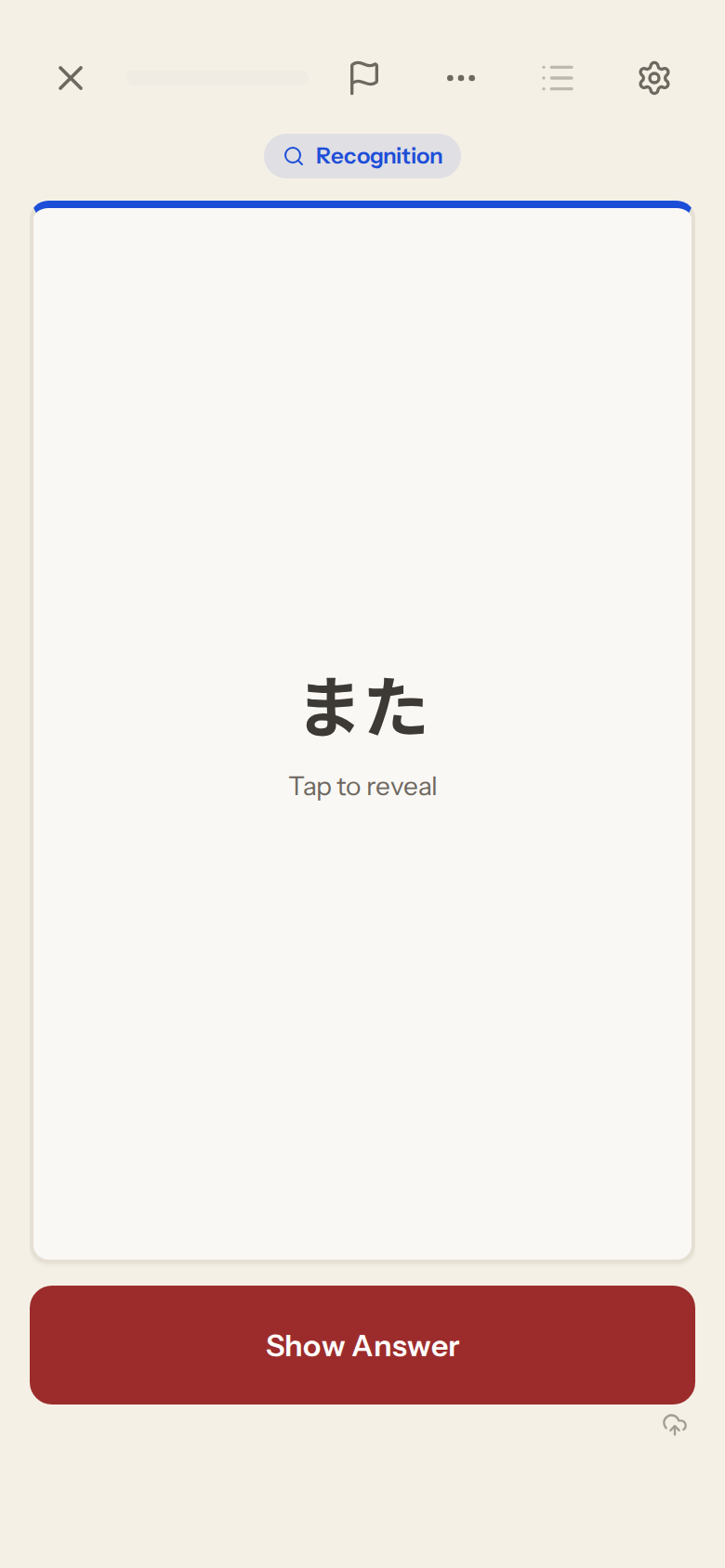
The front shows the word. Tap the card, press Show Answer, or press Space to turn it over.
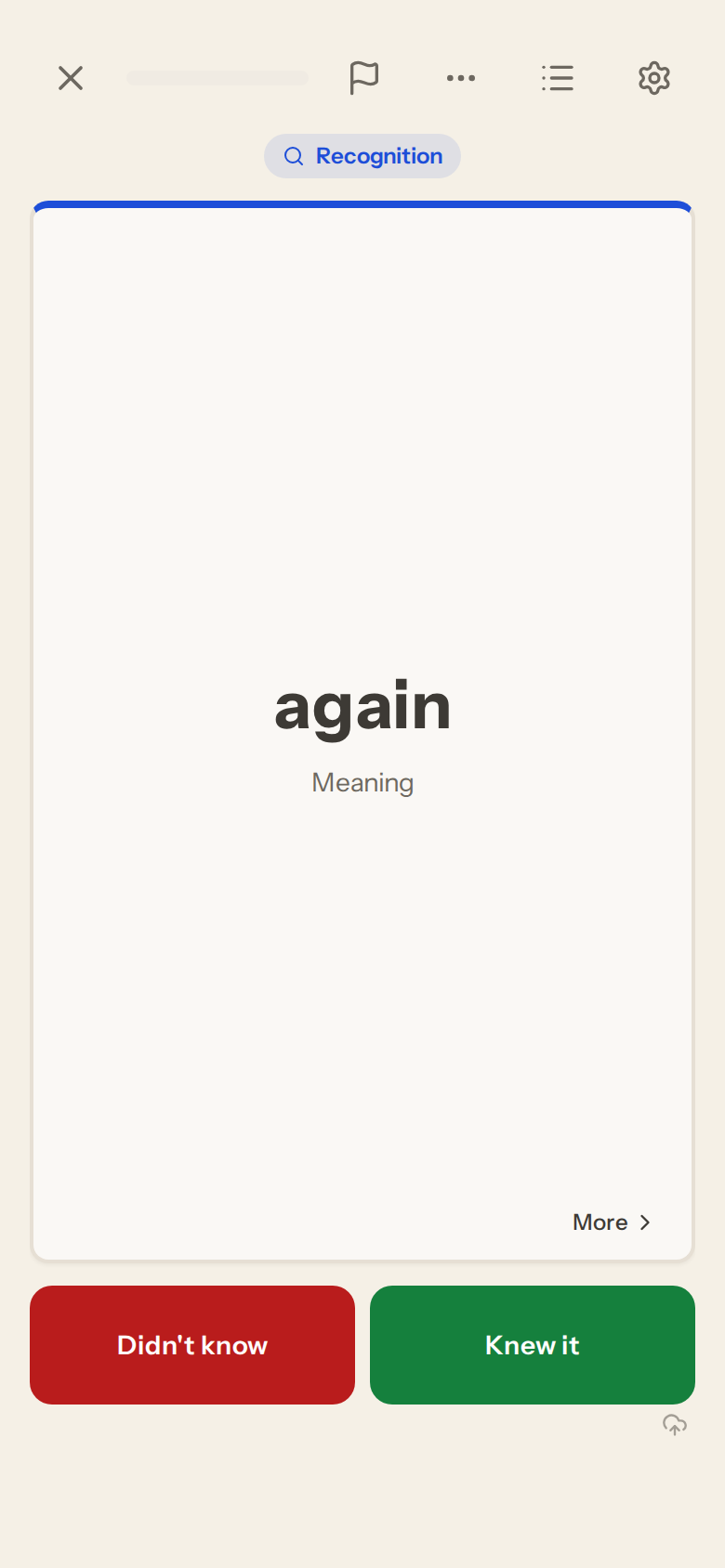
The back shows the word's main meaning, so you can check yourself at a glance. For the rest, open word details from the reviewer. Word details hold the full meaning, the word's other senses, an example sentence, conjugations where the word has them, and the module that taught it.
Grading buttons #
By default there are two buttons: Didn't know and Knew it. If you want finer control, switch to the full set of four in review settings (Grading buttons › Full).
- Again: you did not recall it. The card returns soon.
- Hard: you recalled it, but slowly. This still counts as a success; the interval grows more slowly than Good.
- Good: you recalled it normally.
- Easy: instant recall. The interval jumps further ahead.
Hard is not a failure button. Use it when you got there but it took effort. Didn't know counts as Again and Knew it counts as Good.
On a keyboard, press 1 to 4 for the four buttons, or 1 and 2 for the simple pair. Z undoes the last grade.
When you finish #
The review-complete screen shows how many cards you reviewed and your accuracy, then a breakdown: how many you marked Again, Hard, Good and Easy, how many were new cards and how many were reviews, and how long you spent. If more cards are waiting you can keep going from there.
Recognition and recall #
Each word tracks two separate states: recognizing it when you see it, and producing it from the meaning. They are scheduled independently, because the two skills genuinely diverge. A word is due when either side is due.
Lessons and reviews share one schedule #
Getting a word wrong in a lesson affects its flashcard schedule, and the reverse holds too. Practice activities and stories feed the same schedule. There is one memory model per word, not two.
Card Manager #
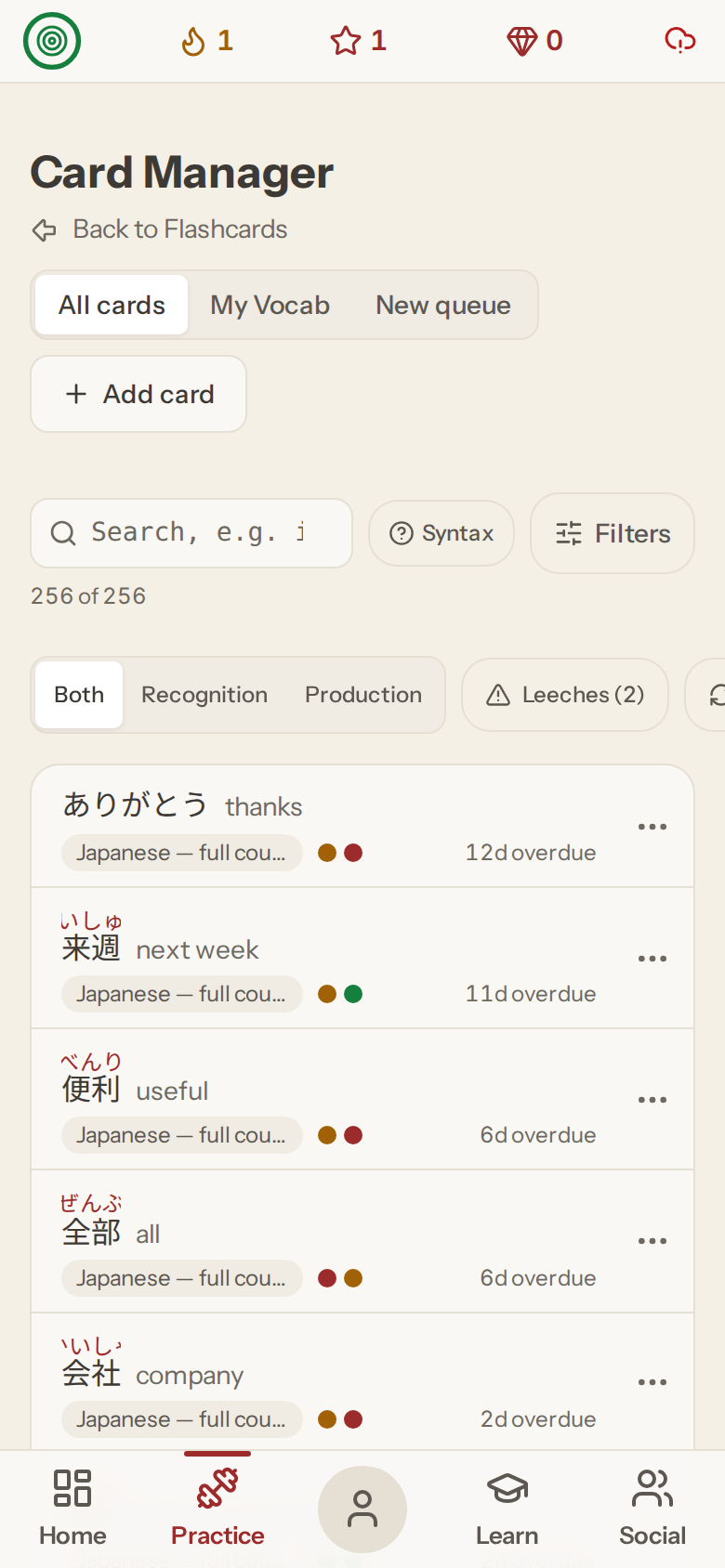
Card Manager lists every card you study. Search, filter, and switch the view between recognition, production or both. From a card's menu you can open its info and review history, bury it until tomorrow, suspend it, set a due date, or forget it and start it again as new. Cards you added yourself can be edited. In the reviewer you can also add a personal note to any card; it shows on the back.
Two more tabs sit beside All cards: My Vocab holds the cards you added yourself, and New queue shows which new cards are coming next and lets you move them to the front or the back.
Decks #
The Decks page lists the decks you study, grouped into your own vocabulary and lesson decks. For each one you can set how many new cards it adds a day, whether they come in order or shuffled, and switch it on or off.
Importing from Anki #
Choose Import from Anki on the flashcards page and pick an Anki export (.apkg or .colpkg). The file is read on your device. Before anything changes, you see what will happen: which notes match words in the course, which become new My Vocab cards, and how many past reviews are kept. Matched words keep their Anki progress, so words you already know are credited instead of taught again. You can undo an import afterwards.
Sync #
Reviews are saved on your device first, so they work offline, and sync to your account when you are connected. See Sync and ad-free time for what syncs and how to check it.